
🎯 What You’ll Learn
By the end of this chapter, you’ll be able to:
- Understand what Power BI is and why it’s used
- Identify the main components of the Power BI ecosystem
- Install and launch Power BI Desktop
- Navigate all key views inside Power BI
- Compare Power BI to Excel in a business context
1️⃣ What is Power BI?
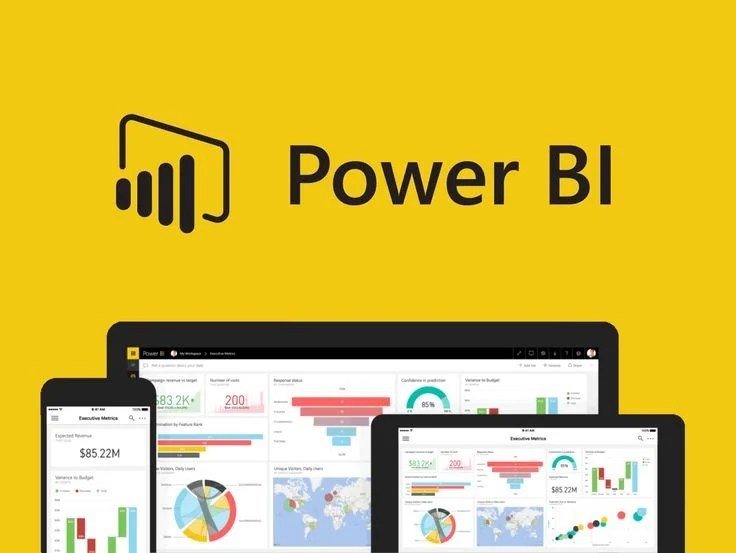
Power BI is Microsoft’s Business Intelligence (BI) platform used for:
- Connecting to various data sources (Excel, databases, websites, etc.)
- Cleaning and transforming raw data
- Creating interactive dashboards and visuals
- Sharing insights securely via the cloud
It helps users turn raw data into meaningful insights and business decisions without writing much code.
✅ Think of Power BI as Excel + Dashboards + Automation + Cloud Sharing.
2️⃣ Power BI Components Overview
| Component | Purpose |
|---|---|
| Power BI Desktop | Create reports and dashboards (free desktop app for Windows) |
| Power BI Service | Cloud-based platform to publish, view, and collaborate on reports |
| Power BI Mobile | View and interact with reports on mobile devices |
| Power BI Report Server | On-premises reporting solution for enterprises |
🎯 For this course, we’ll mainly use Power BI Desktop and Power BI Service.
3️⃣ Installing Power BI Desktop
To Install:
- Visit https://powerbi.microsoft.com/desktop
- Download from the Microsoft Store (recommended) or direct .exe file
- Launch the app after installation
Minimum Requirements:
- Windows 10/11
- 64-bit system
- At least 4 GB RAM recommended
⚠️ Power BI Desktop is not natively available for Mac. You’ll need Windows via Parallels or Remote Desktop if using macOS.
4️⃣ Power BI vs Excel
| Feature | Excel | Power BI |
|---|---|---|
| Data Capacity | Up to ~1M rows | Handles tens of millions of rows |
| Dashboards | Limited interactivity | Rich, interactive, web-based visuals |
| Modeling | Manual linking | Auto-detect relationships, star schema |
| Automation | Limited | Scheduled refresh, DAX logic |
| Collaboration | Email or OneDrive | Web-based, versioned, and shared |
🔍 Power BI is better suited for large datasets, live dashboards, and sharing insights with teams.
5️⃣ Power BI Desktop: Views Explained
When you launch Power BI Desktop, you’ll interact with several key views:
🧭 1. Report View
- Design your dashboards with visuals (charts, KPIs, slicers, etc.)
- Add multiple pages like a presentation
- Apply formatting and interactions
📍 Access: Left panel → top icon (chart symbol)
📋 2. Data View (Table View)
- Shows your loaded tables like a spreadsheet
- You can inspect row-level data and add calculated columns using DAX
📍 Access: Left panel → middle icon (table symbol)
🔗 3. Model View
- Displays the relationships between your tables
- Drag and connect fields to define one-to-many relationships
- Rename and hide tables, set data roles
📍 Access: Left panel → bottom icon (diagram symbol)
🧮 4. DAX Query View (Advanced)
- Lets you write DAX queries to directly explore or summarize your data
- Useful for performance tuning and advanced users
📍 Access: Modeling tab → New DAX Query
🔧 May need to enable from File → Options → Preview Features
🧪 Mini Activity: Explore Power BI Desktop
- Open Power BI Desktop
- Click Home → Get Data → Excel and load any sample dataset
- Try switching between:
- Report View (design)
- Data View (see table rows)
- Model View (relationship diagram)
- Try dragging a field to create your first bar chart on the canvas
📌 Chapter Summary
| You Now Know… |
|---|
| ✅ What Power BI is and what it’s used for |
| ✅ The key components: Desktop, Service, Mobile |
| ✅ How to install Power BI Desktop |
| ✅ How Power BI compares to Excel |
| ✅ The 4 main views inside Power BI and what each one does |
 Nerdish.Org
Leave a comment